What a Campaign Is
In other platforms you may know this object as an offer. The naming differs; the job does not. A campaign answers five questions, and it has to answer all five before it can take live traffic:
- Where does the visitor go? The campaign URL, plus any landing pages you split across.
- Who pays, and how much? Revenue is what the advertiser pays you. Payout is what you pay the affiliate.
- What counts as a conversion? The events attached to the campaign and the validation window they are accepted in.
- Which traffic is allowed? Targeting rules, capping, and the anti-fraud thresholds.
- Who may promote it? Visibility plus the per-affiliate approval list.
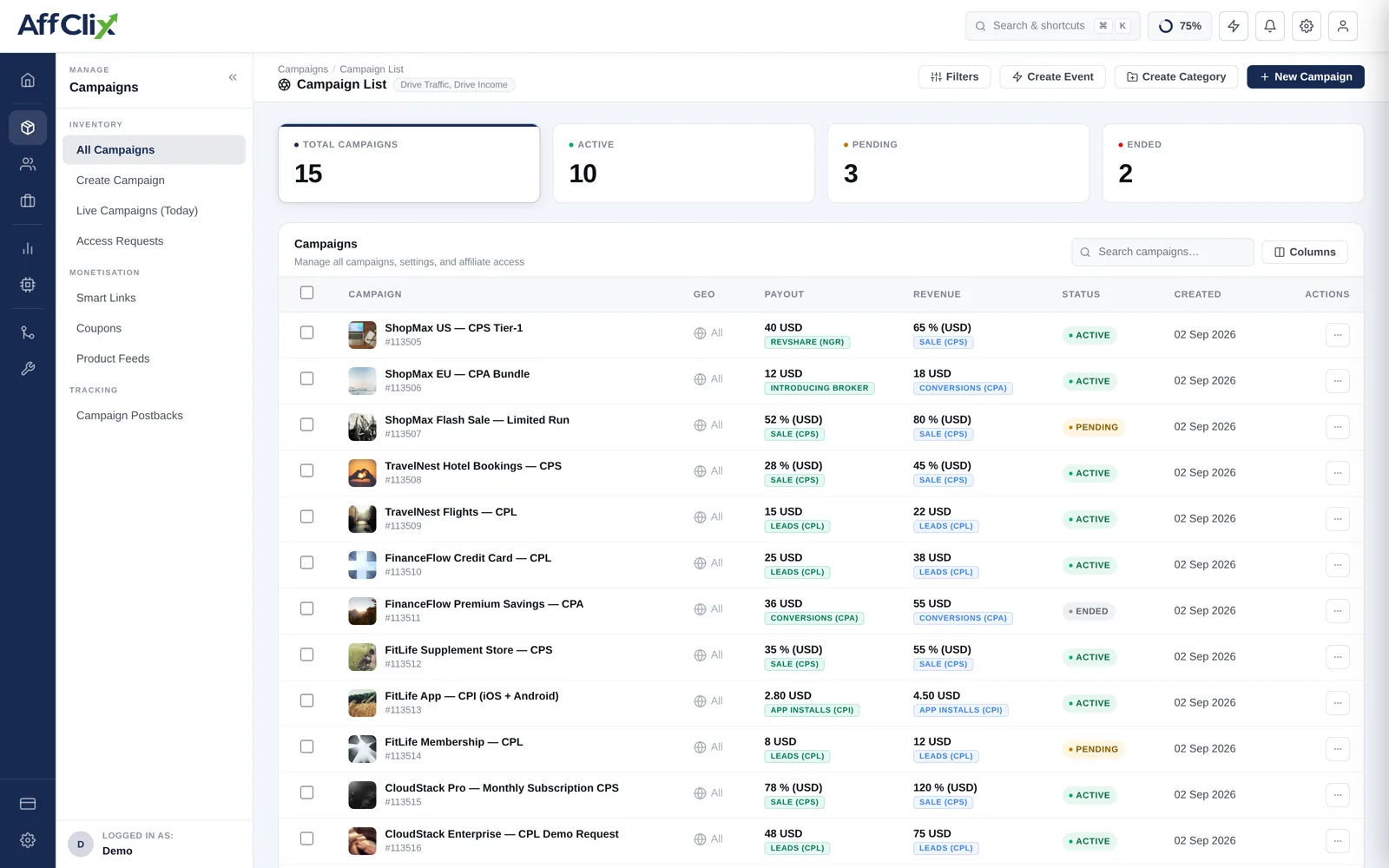
Anatomy of a Campaign
The margin on a campaign is the gap between the two prices it carries. Keeping them visible next to each other on the list screen is deliberate — an inverted campaign is the single most expensive configuration mistake in affiliate marketing.
| Concept | What it means | Set on |
|---|---|---|
| Revenue | What the advertiser pays you per conversion, as a fixed amount or a percentage of sale value. | Basic info |
| Payout | What you pay the affiliate. Must be at or below revenue unless you are deliberately buying volume at a loss. | Basic info |
| Payment model | The action being bought — CPA, CPL, CPI, CPS, CPC, RevShare. Determines how revenue and payout are read. | Basic info |
| Campaign URL | The advertiser destination, with tracking tokens appended so click data survives the redirect. | Basic info |
| Events | The conversions this campaign can record. Every campaign has a built-in initial event. | Events |
| Visibility | Public, Public + Require Approval, or Private. Controls who can see and request the campaign. | Basic info |
There are legitimate reasons to run negative margin — buying data, honouring a launch commitment — but it should be a decision, not a typo. Check both numbers on the campaign list before you open traffic.
Before You Start
Two things must exist before a campaign can be saved:
Useful to have, but not blocking: the payout terms in writing, the geos the advertiser will accept, and any daily cap they have committed to.
The Setup Flow
A new campaign starts on the create screen, which asks only for details, tracking, pricing and a description. Everything else attaches rows to a campaign ID, so it opens once the campaign is saved. After you press Create Campaign you land on the campaign's Targeting section.
-
Create the campaign
Name, advertiser, vertical, campaign URL, payment model, currency, revenue and payout. See Create a Campaign.
-
Attach your conversion events
In the Events section, set the validation window and decide whether repeat conversions are allowed. The advertiser postback URL is built there too.
-
Add targeting and capping
Restrict by geo, device or OS, and cap daily volume so you never oversell what the advertiser agreed to buy. See Targeting Rules and Capping.
-
Set payout rules and upload creatives
Per-geo or per-affiliate pricing overrides go in Payout Rules; banners and assets go in Creatives.
-
Approve affiliates and hand out links
Approve who may run it, then copy each affiliate's tracking link. See Manage Affiliates.
The Campaign Overview
Click a campaign on the list to open its Overview. This is the read-only summary of the campaign; you change things from the sections in the menu on the left.

| Panel | What it shows |
|---|---|
| Summary strip | Revenue, payout, margin, schedule (with the campaign timezone) and how many affiliates are approved. |
| Performance | Clicks, conversions, conversion rate, profit, revenue, payout, EPC and average payout for Today, 7 days or 30 days. Revenue and payout count approved conversions only. |
| Tracking & URLs | The tracking link template affiliates use, the global S2S postback URL for the advertiser, the tracking domain for clicks and for conversion tracking, and the destination and preview URLs — each with a Copy button. Generate affiliate links opens the Affiliates section. |
| Campaign content | The description and KPI / terms affiliates read, and the private note marked Team only. |
| Setup | A checklist of targeting, events, affiliates, payout rules, capping, creatives, landing pages and fallback, with a count for each. Click a row to open that section. |
| Details | Advertiser, payment model, visibility, vertical, categories, start and end, time targeting, deep link, and who created and last updated the campaign. |
The header buttons are Preview, Edit campaign (opens Basic info) and Affiliate links. Edit campaign appears only if you have permission to edit campaigns.
Section Reference
Every saved campaign has a section menu on the left, in four groups. A number next to a section is how many rules or items it holds (for Affiliates, how many are approved). The Basic / Advanced switch at the bottom of the menu changes how many fields each section shows — every section stays in the menu either way.
| Group | Section | What you configure there |
|---|---|---|
| Setup | Overview | Read-only summary — see above. |
| Basic info | Identity, vertical settings, campaign URL, landing pages, pricing, schedule, description and KPI. | |
| Targeting | Geo, device, OS, browser and connection rules that accept or reject a click. | |
| Events | Conversion settings (validation window, multiple and same-IP conversions, verification), the event list, and the advertiser postback URL builder. | |
| Payout rules | Conditional revenue and payout overrides by geo, affiliate or event. | |
| Distribution | Affiliates | Approve or reject access, group access, and per-affiliate tracking links. |
| Creatives | Banners, emails, SMS copy, videos and HTML ads affiliates can use. | |
| Coupons | Coupon codes attributed to this campaign for offline and code-driven conversions. | |
| Controls | Capping | Click and conversion limits per hour, day, week or month, overall or per affiliate. |
| Traffic types | Which traffic types affiliates may use, per-affiliate exceptions, and what the tracker does with a click that breaks the rules. Shown when your plan includes it. | |
| Application questions | Screening questions affiliates answer when they apply, and the answers received. Shown when your plan includes it. | |
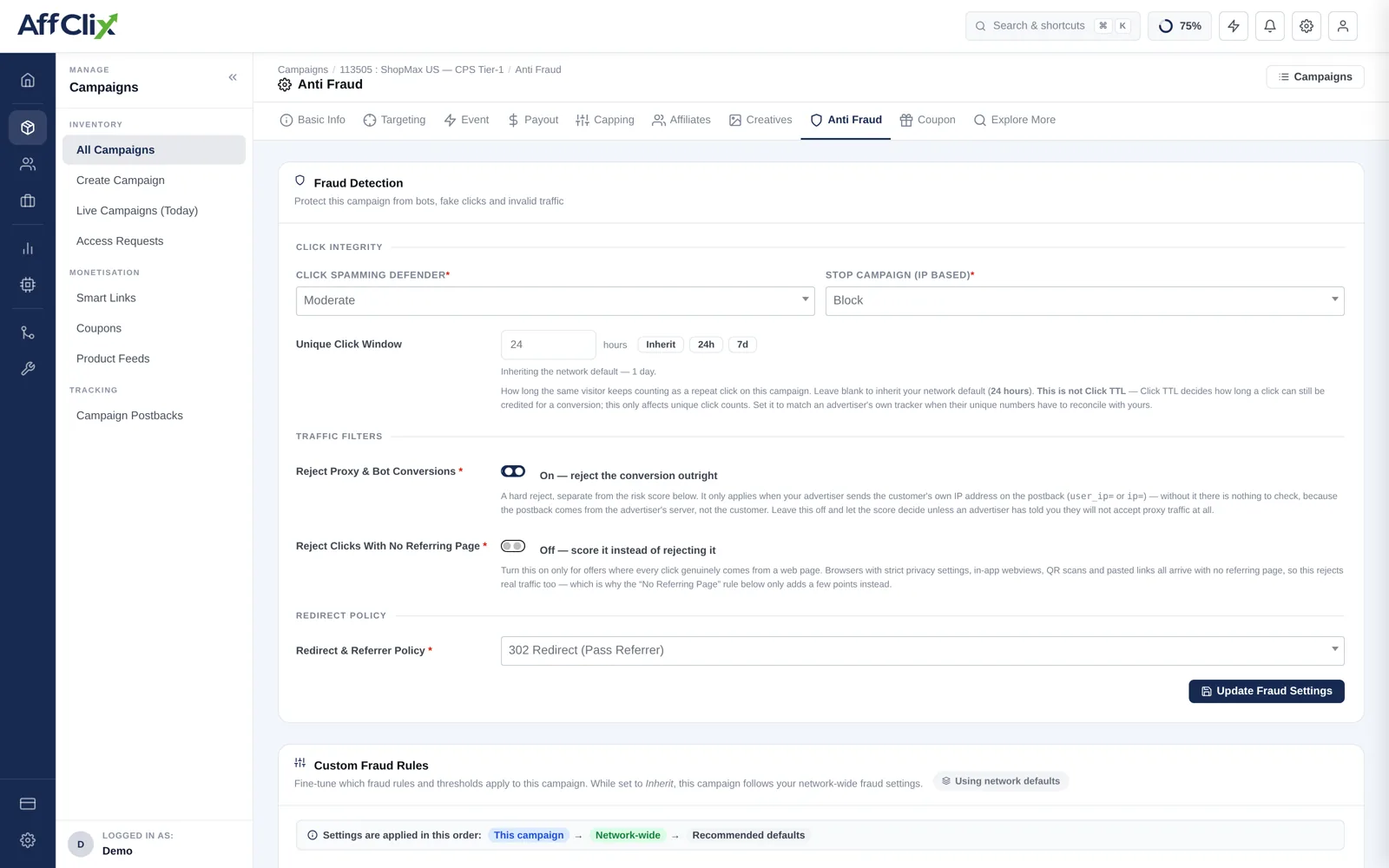
| Anti-fraud | Click protection, repeat visitors, view-through attribution, Fallback and fraud score rules. | |
| Extend | Integrations | Jump-off points to reports, the audit log, and postback tools for this campaign. |
Status and Lifecycle
| Status | Behaviour |
|---|---|
| Active | Accepts clicks and records conversions, subject to schedule, targeting and caps. |
| Pending | Configured but not yet taking traffic. Use while the advertiser contract is still open. |
| Ended | Closed. Incoming clicks are rejected, and trafficback sends them elsewhere if configured. |
Set up Fallback in the campaign's Anti-fraud section so that clicks arriving at an expired or capped campaign are redirected to another campaign instead of hitting a dead end.
Verify Before Launch
Run this list before you tell an affiliate the campaign is live:
{click_id} — without it, no conversion can ever be attributed back.The Link Tester walks a click through targeting, capping and redirect logic without spending real traffic, and tells you which rule rejected it.