How Access Works
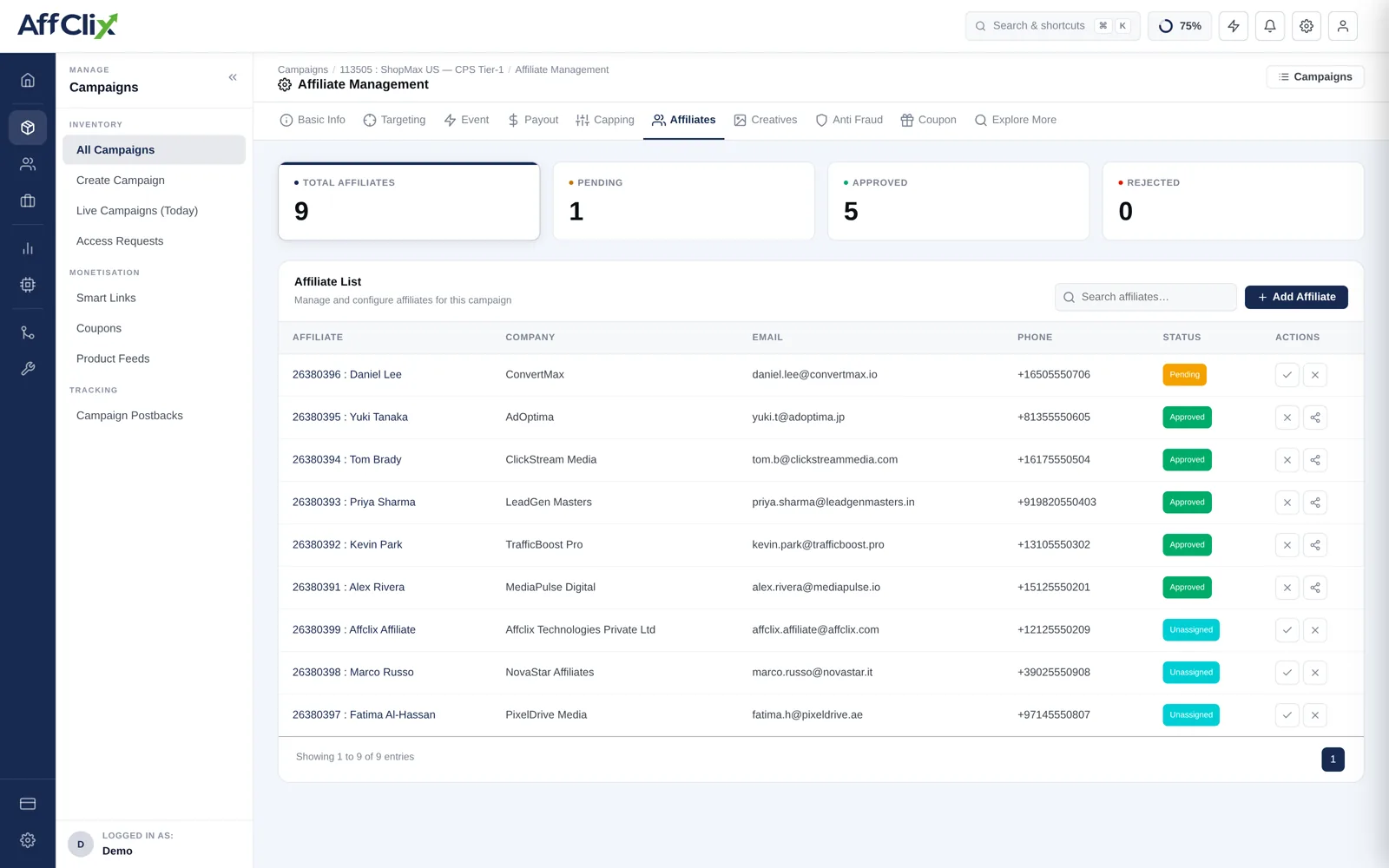
Two things control whether an affiliate can run a campaign: the campaign's Visibility setting on Basic Info, and their individual status on this tab.
| Visibility | What affiliates see | What you do here |
|---|---|---|
| Public | Campaign is listed and runnable immediately. | Nothing required. Use the tab to build links or revoke a specific partner. |
| Public + Require Approval | Campaign is listed; running it needs a request. | Approve or reject the requests that arrive as Pending. |
| Private | Campaign is hidden entirely. | Add affiliates manually. Nobody else can find it. |
Access Statuses
| Status | Meaning |
|---|---|
| Approved | May run the campaign. Their tracking link is live and conversions will be credited. |
| Pending | Has requested access and is waiting on you. Clicks are not accepted yet. |
| Rejected | Declined. The campaign stops appearing in their portal. |
| Unassigned | Exists on your network but has no relationship with this campaign either way. |
If a partner reports that their link redirects but nothing appears in reporting, check their status here first. It is the most common explanation, and it looks identical to a tracking fault from their side.
Approving an Affiliate
Open the campaign and select Affiliates
The counters show how many are pending at a glance.
Review the request before approving
Check their traffic sources against the campaign KPI. Approving an incentivised partner onto an offer that forbids incentive traffic creates a chargeback conversation later.
Set the status to Approved
Or use Add Affiliate to grant access directly on a private campaign.
Apply a payout override if you agreed one
A negotiated rate belongs in Payout Rules conditioned on that affiliate, not in the campaign default.
Building the Tracking URL
The Tracking URL Builder generates the link for a selected affiliate, updating live as you toggle options. Four output forms are available:
| Option | Use it for |
|---|---|
| Landing Page | Point the link at a specific landing page rather than the default rotation. |
| Impression URL | A view-tracking pixel for display placements where you need impression counts. |
| QR Code | Offline and print placements — the same tracked link as a scannable code. |
| Short URL | Character-limited placements such as SMS and social bios. |
A generated tracking URL looks like this:
https://track.yournetwork.com/click?campaign_id=113505&affiliate_id=26380392&sub_aff1={source}&sub_aff2={creative}Use Copy URL to take it to the clipboard, or Send URL to email it straight to the affiliate from the platform.
Tracking Parameters
The builder can append any of these. They are placeholders the affiliate fills at click time, and each one becomes a filterable column in reporting.
| Parameter | Carries |
|---|---|
aff_click_id | The affiliate's own click identifier, used for their postback reconciliation. |
sub_aff1 – sub_aff10 | Ten free-form slots for source, creative, placement, ad set and so on. |
source | Traffic source label. |
gaid, iosidfa, androidid, deviceid | Mobile advertising identifiers, required for app install attribution. |
creativeid | Which creative produced the click. |
deep_link | Destination path for product-level landing. |
fbclid, gclid, ttclid, msclkid, dclid, gbraid, wbraid | Platform click IDs from Meta, Google, TikTok and Microsoft — needed for conversion API uploads. |
Agree a convention across your campaigns — sub_aff1 always source, sub_aff2 always creative — and hold to it. Reports become comparable across campaigns only if the slots mean the same thing everywhere.
Delivering the Link
Before you send it out: