Why Configure SMTP
Sending through your own mail server means email arrives from your domain rather than a shared platform address. That matters for two reasons: partners recognise and trust it, and your domain's own authentication records decide whether it reaches the inbox.
Go to Settings → Email → SMTP.
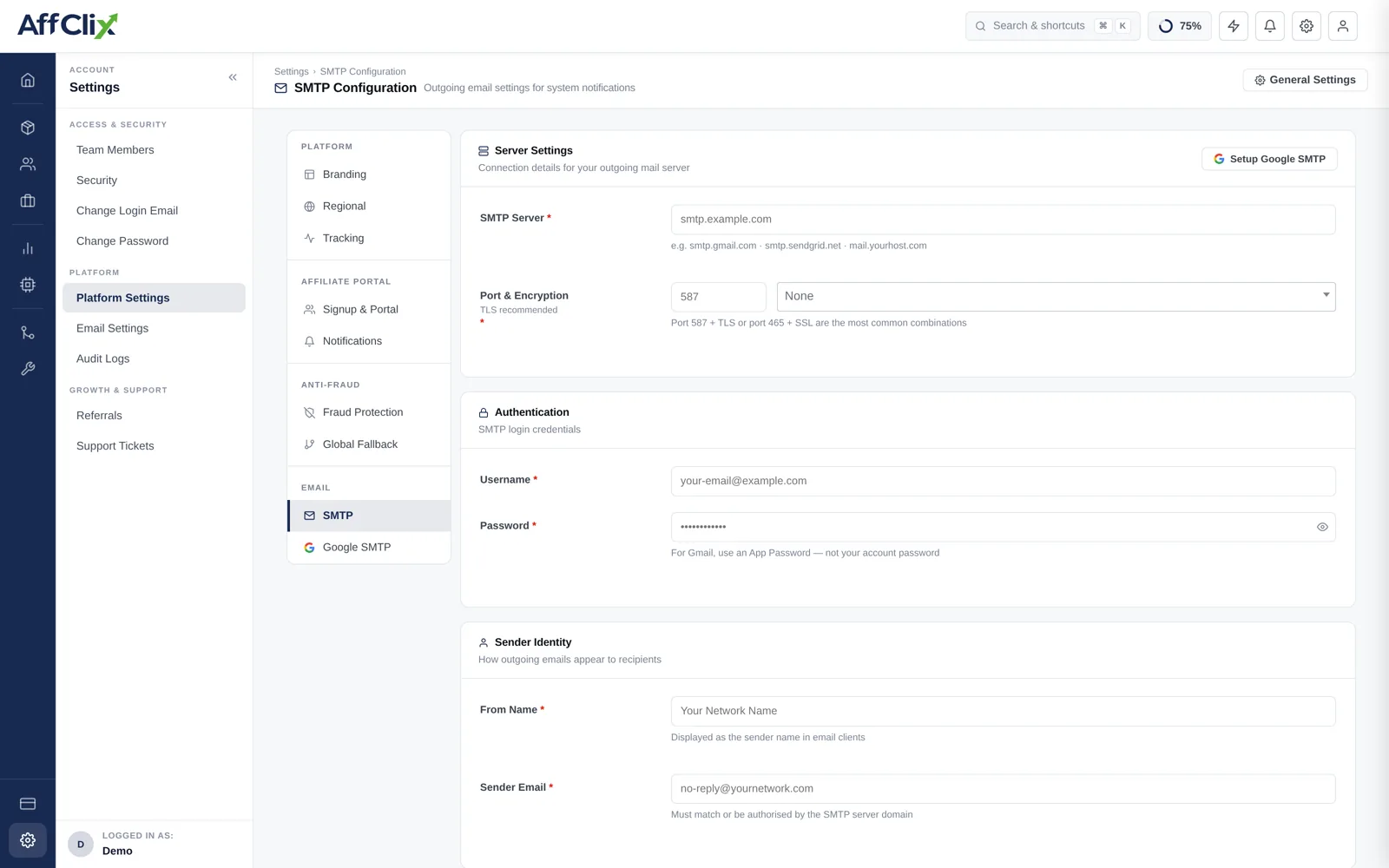
Settings Reference
| Setting | Notes |
|---|---|
| SMTP Server | Your provider's hostname — for example smtp.gmail.com, smtp.sendgrid.net, or your own mail host. |
| Port & Encryption | None, SSL or TLS. TLS is recommended. |
| Username | The SMTP login, usually the full email address. |
| Password | The SMTP password. For Gmail this must be an App Password, not the account password. |
| From Name | The sender name recipients see. Use your network's name. |
| Sender Email | The From address. Must be authorised by the SMTP server's domain. |
The Send Test Email button uses the stored settings, not what is currently on screen. Save first, then test — otherwise you will be testing the previous configuration and drawing the wrong conclusion.
Ports and Encryption
| Port | Encryption | Notes |
|---|---|---|
| 587 | TLS | The modern default. Try this first. |
| 465 | SSL | Widely supported, still common. |
| 25 | None or TLS | Blocked by most hosting providers. Avoid. |
| 2525 | TLS | Offered by some providers as an alternative when 587 is blocked. |
Port 587 with TLS, or 465 with SSL, are the two combinations that work almost everywhere.
Provider Guides
| Provider | Guide |
|---|---|
| Gmail / Google Workspace | Gmail SMTP setup |
| Microsoft 365 / Outlook | Microsoft SMTP setup |
| Zoho Mail | Zoho SMTP setup |
Mailbox providers like Gmail and Microsoft 365 apply per-account sending limits that a growing network will hit. A dedicated transactional service — SendGrid, Postmark, Amazon SES and similar — is built for this traffic and gives you delivery and bounce reporting alongside it.
Deliverability
Correct SMTP settings get mail sent. Getting it delivered depends on DNS records published on your sending domain, which sit outside AffClix.
| Record | What it does |
|---|---|
| SPF | Lists which servers may send for your domain. |
| DKIM | Cryptographically signs your mail so recipients can verify it was not altered. |
| DMARC | Tells recipients what to do when SPF or DKIM fails, and sends you reports. |
Password resets and payment notifications that silently land in spam generate support tickets that look like platform bugs. Publish these records before you invite partners.
Troubleshooting
| Symptom | Likely cause |
|---|---|
| Authentication failed | Wrong username or password. For Gmail, you need an App Password rather than the account password. |
| Connection timed out | The port is blocked by your host. Try 587, then 465, then 2525. |
| Connection refused | Wrong hostname, or the wrong encryption setting for that port. |
| Sender address rejected | The From address is not authorised on the SMTP account. |
| Test succeeds, real emails do not arrive | Delivered but filtered. Check spam, then check SPF and DKIM. |
| Worked, then stopped | A rotated password, an expired App Password, or a provider sending limit. |