What This Report Shows
Conversion-level detail, not aggregates. Every row is one recorded conversion, which makes it the record of truth for disputes — an affiliate asking why a sale was not credited, or an advertiser asking why they were billed for one that was.
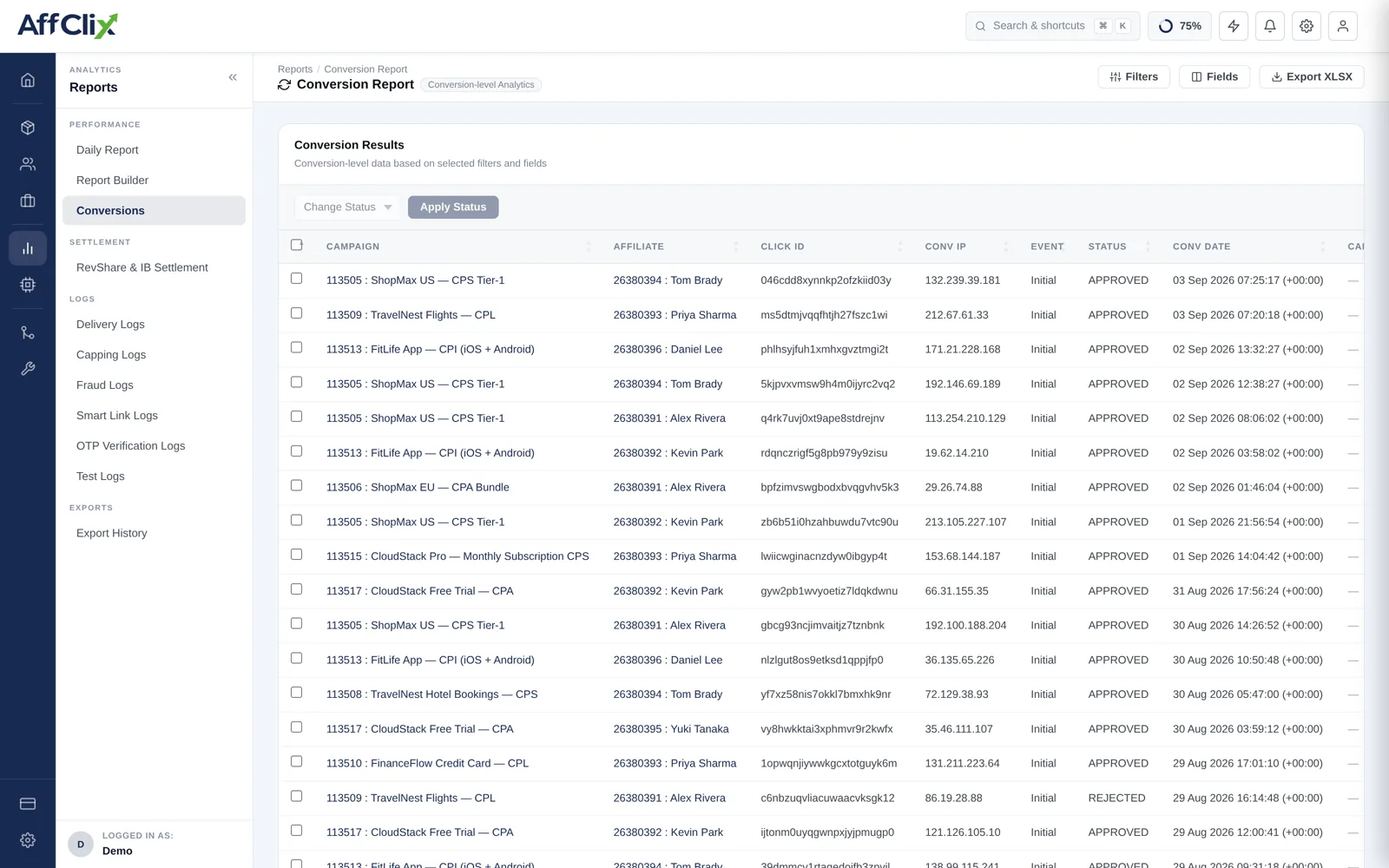
The report defaults to today. If you are looking for something from last week and the table is empty, widen the range before concluding the conversion never arrived.
Column Reference
| Column | Meaning |
|---|---|
| Campaign | The campaign the conversion belongs to, with its ID. |
| Affiliate | Who is credited, and therefore who gets paid. |
| Click ID | The click this conversion was attributed to. The join key back to the Clicks Report. |
| Event | Which conversion event fired — the built-in initial conversion, or a custom one. |
| Status | Approved, Pending or Rejected. |
| Revenue | What the advertiser is billed for this conversion. |
| Payout | What the affiliate earns. The difference is your margin. |
| Transaction / Order ID | The advertiser's own reference. Used to deduplicate retried postbacks. |
| Date | When the conversion was recorded, not when the click happened. |
Conversion Status
| Status | Meaning | Payable |
|---|---|---|
| Approved | Confirmed by the advertiser, or auto-approved by the campaign's verification setting. | Yes |
| Pending | Recorded but not yet confirmed. May still be approved or rejected. | No |
| Rejected | Declined — a returned order, a failed validation, or flagged as invalid. | No |
Paying affiliates on pending volume means paying for conversions the advertiser may still reject, and recovering that money afterwards is a negotiation rather than a process. Filter to Approved before generating invoices.
Whether a conversion lands as Approved or Pending is set per campaign on the Event tab, under Conversion Verification — Auto or Manual.
Filtering
Beyond the date range, the useful filters are:
- Campaign — narrow to one offer when reconciling with an advertiser.
- Affiliate — everything credited to one partner, for a payout query.
- Status — approved only, for invoicing; rejected only, for a quality review.
- Event — separate registrations from deposits on multi-event campaigns.
Results can be exported for reconciliation. If an export is large, it is queued and appears under Export History when ready rather than blocking the screen.
Investigating a Conversion
Find the row by transaction or order ID
This is the advertiser's own reference and the fastest way in when they raise a query.
Take the click ID
It is the link back to how the visitor arrived.
Look that click up in the Clicks Report
The Clicks Report gives you geo, device, sub-IDs and the timestamp — everything needed to judge whether the traffic was genuine.
Check the postback that created it
The Advertiser Postback Log shows the exact request received, including every parameter the advertiser sent.
When a Conversion Is Missing
An affiliate reports a sale that is not in this report. Work through in this order:
| Check | What it rules out |
|---|---|
| Widen the date range | The conversion was recorded outside the window you are viewing. |
| Clear the status filter | It arrived but was rejected, so it is hidden by an Approved filter. |
| Check the advertiser postback log | Whether the postback reached you at all. |
| Check the click exists | No click means nothing to attribute to — usually a link problem. |
| Check the validation window | A conversion arriving after the window has closed is not accepted. |
| Check the advertiser IP whitelist | A postback from an unlisted address is rejected silently. |
Set on the Event tab, it defaults to 12 hours. If an advertiser confirms conversions on a weekly batch, a 12-hour window will reject every one of them. Match the window to how the advertiser actually works.