What a Payout Rule Does
A payout rule is a condition plus a price. When a conversion matches the condition, the rule's revenue and payout are used instead of the campaign default. When nothing matches, the campaign default applies.
Both sides of the deal can be overridden. That matters: a US lead may be worth more to the advertiser and cost you more to buy, and a rule that only moved the payout would quietly compress your margin.
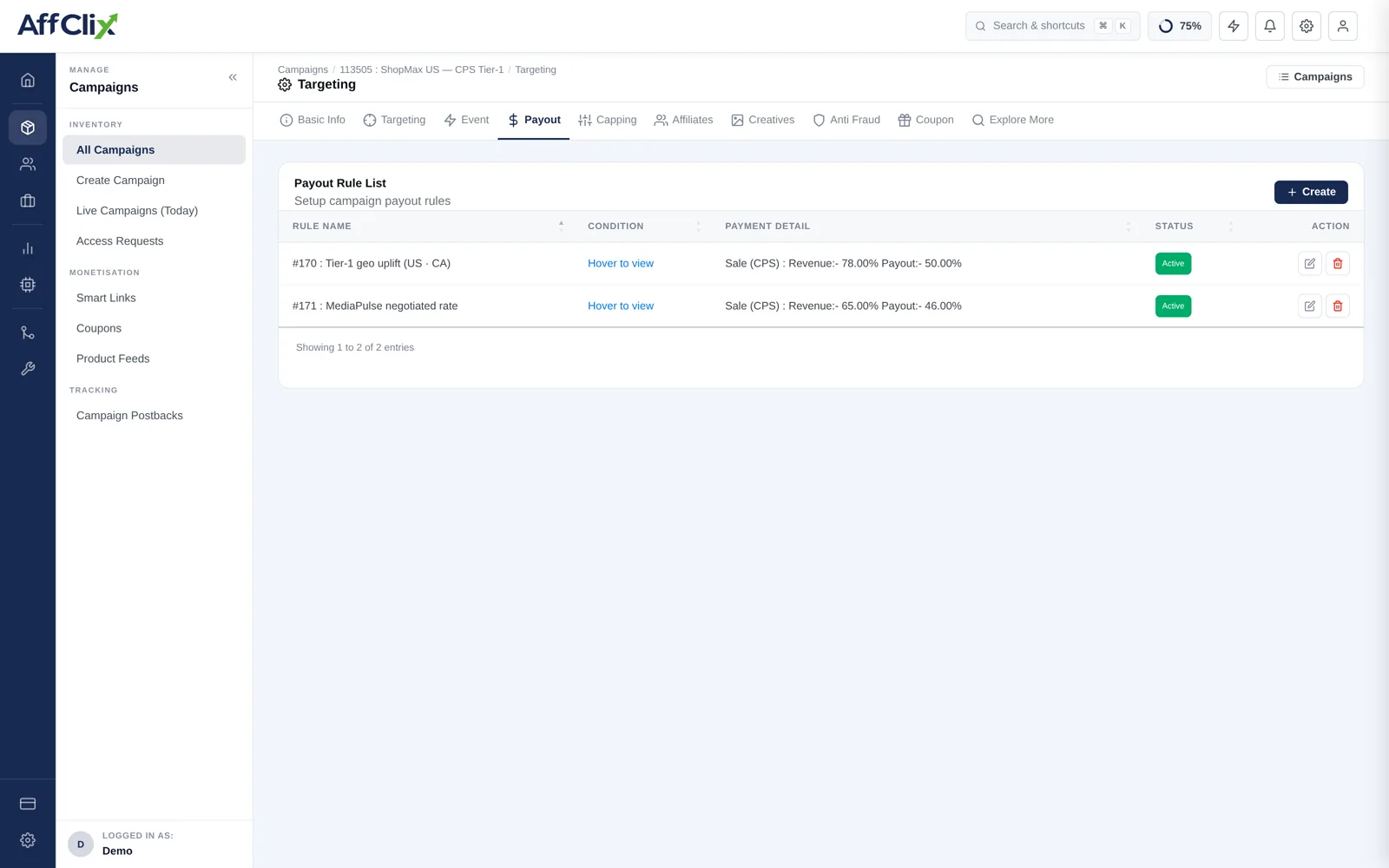
Creating a Rule
Open the campaign and select Payout
Existing rules are listed with their condition, pricing and status. Hover a row to see the full condition.
Press Create
Name the rule after the reason it exists, not the numbers — Tier-1 geo uplift (US · CA) stays readable when the rate changes.
Set the condition
Geo, affiliate, event, or a combination. A rule with no condition applies to everything and replaces the campaign default outright.
Set revenue and payout
Both in the campaign currency, expressed as a fixed amount or a percentage depending on the payment model.
Save and confirm it is Active
An inactive rule stays on the list but is ignored — useful for seasonal pricing you want to keep on file.
Conditions You Can Match
| Condition | Typical use |
|---|---|
| Geo | Tier-1 countries pay more than Tier-3. The most common reason to write a rule at all. |
| Affiliate | A negotiated rate for a partner delivering volume or unusually good quality. |
| Event | A registration and a first deposit are both conversions, and they are not worth the same. |
| Combination | A specific affiliate in a specific geo — the most precise, and the highest priority. |
Precedence
When more than one rule could match a conversion, the more specific one wins. In practice that ordering is:
- Affiliate and geo and event
- Affiliate and geo
- Affiliate
- Geo
- Event
- The campaign default on Basic Info
If an affiliate is being paid a number you do not recognise, check for a broad geo rule sitting underneath a narrow affiliate rule. Write conditions as tightly as the deal actually is, and delete rules when the deal ends rather than leaving them inactive and forgotten.
Common Patterns
| Situation | Rule |
|---|---|
| Tier-1 traffic is worth more | Geo in US, CA, GB, AU · higher revenue and payout than default |
| A partner negotiated a better rate | Affiliate = that partner · payout raised, revenue unchanged |
| Deposits pay more than registrations | Event = deposit · its own revenue and payout |
| A test partner starts at a lower rate | Affiliate = that partner · payout reduced until quality is proven |
Verifying a Rule
Do not assume a rule fired. Confirm it:
A conversion is priced when it is recorded. Adding or changing a rule does not re-price conversions already in the report — if you agreed a rate retroactively, adjust it at invoicing.