What a Campaign Is
In other platforms you may know this object as an offer. The naming differs; the job does not. A campaign answers five questions, and it has to answer all five before it can take live traffic:
- Where does the visitor go? The campaign URL, plus any landing pages you split across.
- Who pays, and how much? Revenue is what the advertiser pays you. Payout is what you pay the affiliate.
- What counts as a conversion? The events attached to the campaign and the validation window they are accepted in.
- Which traffic is allowed? Targeting rules, capping, and the anti-fraud thresholds.
- Who may promote it? Visibility plus the per-affiliate approval list.
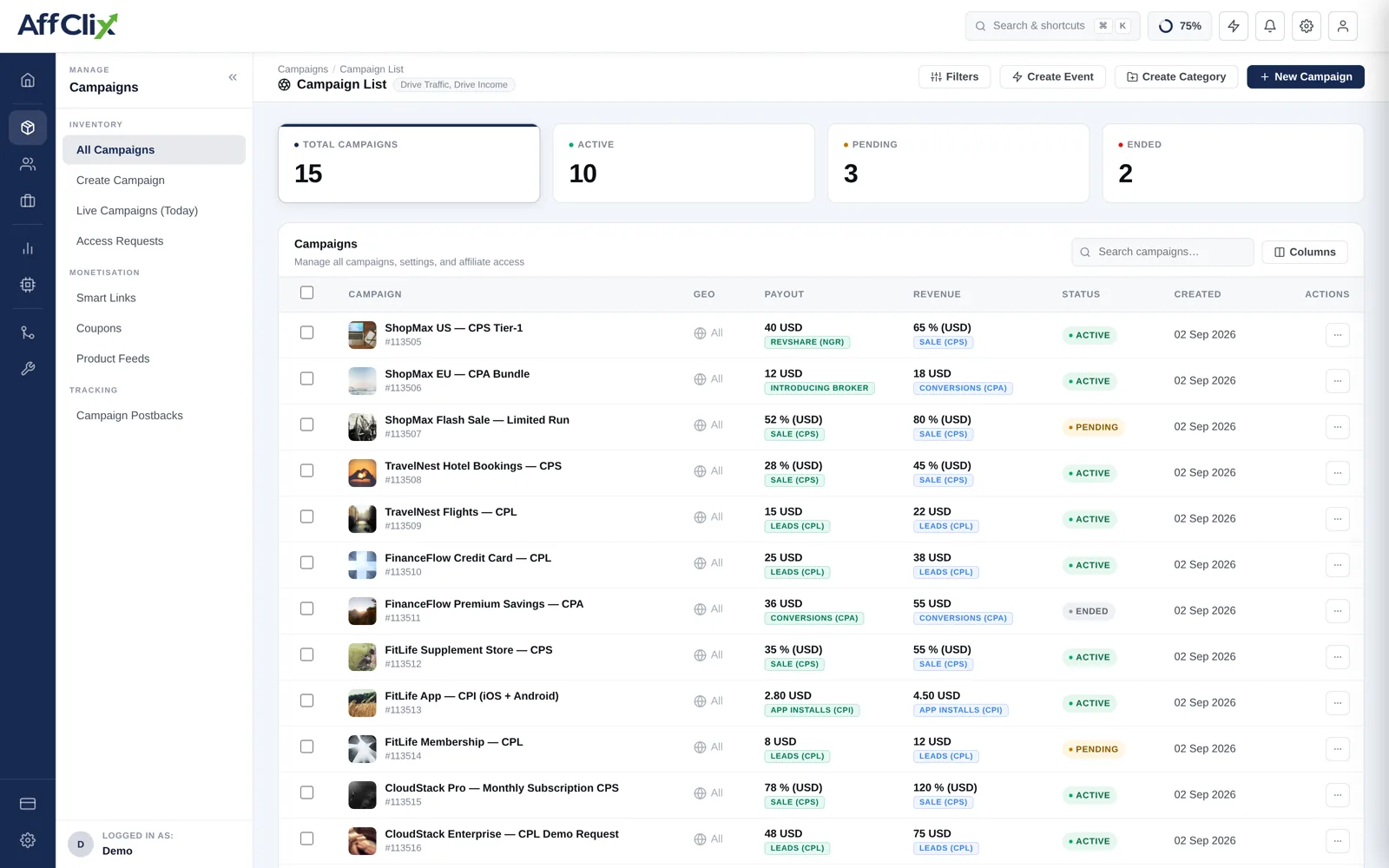
Anatomy of a Campaign
The margin on a campaign is the gap between the two prices it carries. Keeping them visible next to each other on the list screen is deliberate — an inverted campaign is the single most expensive configuration mistake in affiliate marketing.
| Concept | What it means | Set on |
|---|---|---|
| Revenue | What the advertiser pays you per conversion, as a fixed amount or a percentage of sale value. | Basic Info |
| Payout | What you pay the affiliate. Must be at or below revenue unless you are deliberately buying volume at a loss. | Basic Info |
| Payment model | The action being bought — CPA, CPL, CPI, CPS, CPC, RevShare. Determines how revenue and payout are read. | Basic Info |
| Campaign URL | The advertiser destination, with tracking tokens appended so click data survives the redirect. | Basic Info |
| Events | The conversions this campaign can record. Every campaign has a built-in initial event. | Event |
| Visibility | Public, Public + Require Approval, or Private. Controls who can see and request the campaign. | Basic Info |
There are legitimate reasons to run negative margin — buying data, honouring a launch commitment — but it should be a decision, not a typo. Check both numbers on the campaign list before you open traffic.
Before You Start
Two things must exist before a campaign can be saved:
Useful to have, but not blocking: the payout terms in writing, the geos the advertiser will accept, and any daily cap they have committed to.
The Setup Flow
Only Basic Info is available while you are creating a campaign. The other tabs stay disabled until the record exists, because each of them attaches rows to a campaign ID that has not been issued yet. Save first, then configure.
Fill in Basic Info and save
Identity, campaign URL, pricing and schedule. This is the only step that is mandatory to get a campaign on disk. See Create a Campaign.
Attach your conversion events
Set the validation window and decide whether repeat conversions are allowed. Generate the advertiser postback here.
Add targeting and capping
Restrict by geo, device or OS, and cap daily volume so you never oversell what the advertiser agreed to buy. See Targeting Rules and Capping.
Set payout rules and upload creatives
Per-geo or per-affiliate pricing overrides go in Payout Rules; banners and assets go in Creatives.
Approve affiliates and hand out links
Approve who may run it, then build each affiliate's tracking URL. See Manage Affiliates.
Tab Reference
Every tab on an existing campaign, and the article that covers it in depth:
| Tab | What you configure there |
|---|---|
| Basic Info | Identity, campaign URL, landing pages, pricing, schedule, description and KPI. |
| Targeting | Geo, device, OS, browser and connection rules that accept or reject a click. |
| Event | Conversion events, validation window, duplicate handling, advertiser postback builder. |
| Payout | Conditional revenue and payout overrides by geo, affiliate or event. |
| Capping | Click and conversion limits per day, hour or month, globally or per affiliate. |
| Affiliates | Approve or reject access, and build per-affiliate tracking URLs. |
| Creatives | Banners and assets affiliates can pull for this campaign. |
| Anti Fraud | Click-spam sensitivity, proxy and referrer policy, redirect policy, and trafficback. |
| Coupon | Coupon codes attributed to this campaign for offline and code-driven conversions. |
| Explore More | Jump-off points to reports, audit log, and the postback builders and tester. |
Status and Lifecycle
| Status | Behaviour |
|---|---|
| Active | Accepts clicks and records conversions, subject to schedule, targeting and caps. |
| Pending | Configured but not yet taking traffic. Use while the advertiser contract is still open. |
| Ended | Closed. Incoming clicks are rejected, and trafficback sends them elsewhere if configured. |
Configure Fallback (Trafficback) on the Anti Fraud tab so that clicks arriving at an expired or capped campaign are redirected to another campaign instead of hitting a dead end.
Verify Before Launch
Run this list before you tell an affiliate the campaign is live:
{click_id} — without it, no conversion can ever be attributed back.The Link Tester walks a click through targeting, capping and redirect logic without spending real traffic, and tells you which rule rejected it.