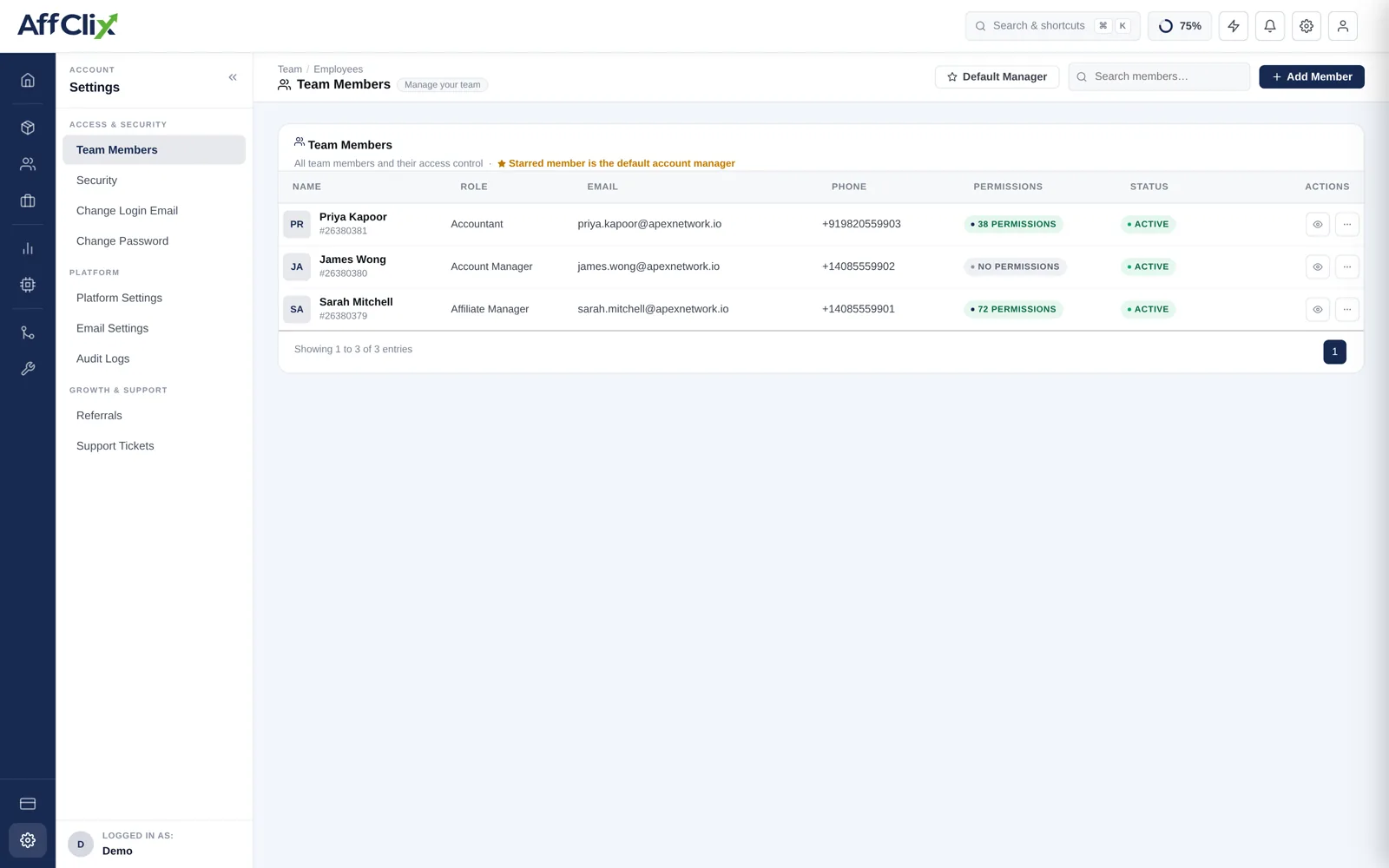
Team Members and Roles
Two independent controls govern what a member can reach, and both matter:
- Role — which screens and actions are available. A permission model.
- Data access — which affiliate and advertiser records are visible. A visibility model.
An Affiliate Manager restricted to their own accounts sees the affiliate screens, but only their own affiliates in them.
Creating a Member
Go to Team → Create Member.
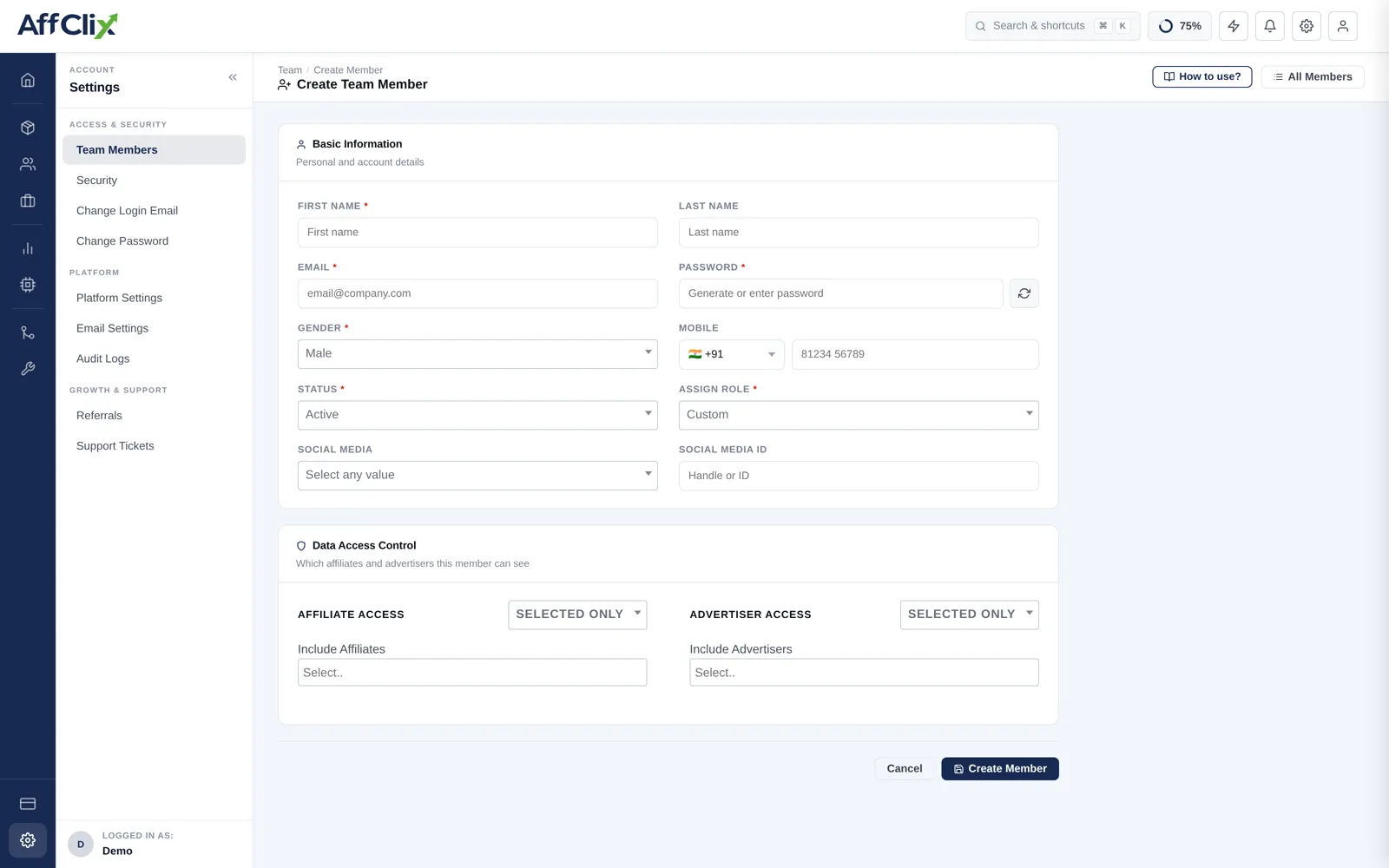
| Field | Notes |
|---|---|
| First / Last Name | Shown throughout the admin panel and in the audit trail. |
| Their login. Unique across the network. | |
| Password | The password they first log in with. Have them change it on first login. |
| Mobile | With country code. |
| Status | Active, Pending or Rejected. |
| Assign Role | The permission set. See the reference below. |
| Social Media | Optional Skype, WhatsApp, Telegram or Teams handle for partner contact. |
Role Reference
| Role | Intended for |
|---|---|
| Super Admin | Full control, including billing, security settings and other team members. Give it to as few people as possible. |
| Admin | Day-to-day operations across campaigns, partners and reports. |
| Accountant | Invoicing, payouts and financial reporting. |
| Affiliate Manager | Recruiting and managing publishers. |
| Advertiser Manager | Managing client accounts and their campaigns. |
| Operational Manager | Campaign setup, tracking and troubleshooting. |
| Custom | A permission set you define yourself, for anything the standard roles do not fit. |
It is the role that can alter what affiliates are paid, what advertisers are billed, and who else has access. Assign it to the smallest number of people who genuinely need it, and review the list on a schedule rather than when something goes wrong.
Data Access Control
The second block on the form scopes visibility independently of role. Each of affiliates and advertisers can be set to ALL or Selected Only.
| Setting | What the member sees | Lists on the form |
|---|---|---|
| ALL | Every affiliate (or advertiser) on the network, including ones added later, except any you exclude. | Exclude |
| Selected Only | The accounts you include, plus every account the member is account manager of, except any you exclude. | Include and Exclude |
Affiliate access and advertiser access are set separately, so a member can see all advertisers but only selected affiliates, or the other way round. Three rules decide the result:
- Account managers see their own accounts. A Selected Only member sees every affiliate and advertiser they manage without being added to the include list.
- An exclusion always wins. An excluded account is hidden from the member even when they are its account manager.
- Selected Only with nothing included means the member sees only the accounts they manage, and nothing at all if they manage none.
The same rule applies everywhere: affiliate and advertiser lists, campaigns, the dashboard and every report. A click or conversion appears for a member only when both its affiliate and its advertiser are visible to them, and campaigns follow their advertiser.
Checking what a member can see
Open the member from Team → Team Members. The Data Access card on their profile shows the mode for affiliates and for advertisers, and lists the accounts behind it: included, managed as account manager, and excluded.
Assigning access in bulk
You do not have to open each member to hand over accounts. On Affiliates → All Affiliates or Advertisers → All Advertisers, tick the rows, choose Team Access in the toolbar, pick the team member and then:
- Give access — the member can see the selected accounts.
- Hide — the accounts are excluded for that member.
This changes what the member can see. It does not change the account manager on the accounts. It needs the permission to edit team members, and up to 200 accounts can be assigned at a time.
A member editing their own profile cannot change their access mode or their include and exclude lists, and cannot use Team Access on themselves. The account owner or another admin has to do it.
When a colleague cannot see a record you can, check their data access before assuming a bug. It also explains why their report totals differ from yours — the numbers are scoped to what they can see.
Scoping is how you let a manager work their own book without seeing what the rest of the team is paying their partners. On a competitive affiliate team that is usually the point.
Access Hygiene
Offboarding
When someone leaves, in this order:
Set their status to Rejected
This revokes access immediately. Do it before the conversation, not after.
Reassign their accounts
Affiliates and advertisers with them as account manager need a new owner. Rejecting a member leaves their accounts with them, so reassign each one on the affiliate or advertiser record. If you delete the member instead, their accounts move to your default account manager automatically.
Check the audit trail
Standard practice for anyone who could change payouts.
Do not delete the account
Deactivate it. The audit trail and historical reports reference the user, and deleting breaks that history.