Overview
Open Reports → Daily Report. The page has three parts:
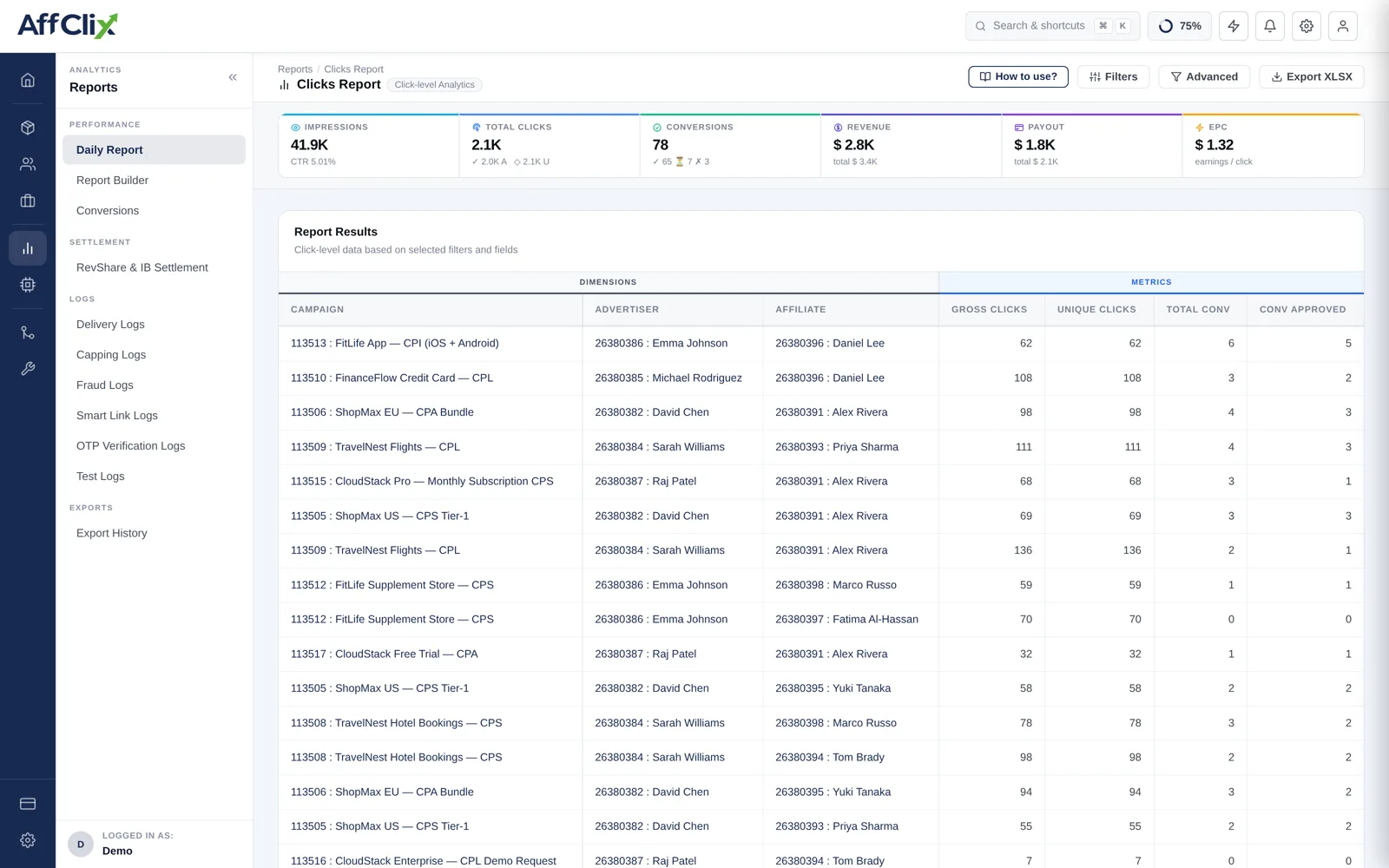
- Filters & Columns — choose the date range, what to filter on and which columns to show.
- Summary tiles — totals for everything that matches your filters.
- Report Results — one row per combination of the columns you picked, for example one row per campaign and affiliate.
Data is live. A click shows up within seconds of the redirect, and a conversion within seconds of the postback arriving.
The Daily Report is built for quick, everyday checks. For saved views, ready-made layouts such as top campaigns or team KPIs, and more grouping options, use the Report Builder.
Summary Tiles
The tiles update whenever you change a filter or the date range.
| Tile | Big number | Small print underneath |
|---|---|---|
| Impressions | Ad impressions recorded | CTR: clicks as a share of impressions |
| Total Clicks | Every click, including blocked ones | Approved clicks and unique clicks |
| Conversions | All conversions | Split into approved ✓, pending ⏳ and rejected ✗ |
| Revenue | Revenue from approved conversions | Total revenue, including pending |
| Payout | Payout on approved conversions | Total payout, including pending |
| EPC | Earnings per click | — |
The big Revenue and Payout numbers count approved conversions only, because that is what you will actually invoice and pay. The smaller "total" adds in conversions still waiting for approval.
Column Templates
Templates are one-click column presets. Pick one, then add or remove individual columns if you need to.
| Template | Columns | Use it to |
|---|---|---|
| Basic | Campaign, Advertiser, Affiliate, Clicks, Unique Clicks, Conversions, Approved Conversions | Get a quick daily picture. |
| Campaign | Campaign, Clicks, Conversions, Affiliate Payout, Advertiser Price, Profit | Compare campaigns and their margin. |
| Affiliate | Affiliate, Clicks, Unique Clicks, Conversions, Payout, Approved Payout | See what each affiliate delivers and earns. |
| Advertiser | Advertiser, Clicks, Unique Clicks, Conversions, Price, Approved Price | Reconcile with an advertiser. |
| Event | Event, Conversion Date, Approved / Pending / Rejected, Status, Status Remark | Follow multi-event campaigns, such as install then purchase. |
| iGaming | Campaign, Affiliate, Player ID, Registrations, Deposits, FTD, GGR, NGR, conversion rates, Payout, Profit | Track the player funnel for casino and betting offers. |
Use the Columns list (with its search box) to add any other column, such as country, device, OS, or the sub-affiliate values sub_aff1–sub_aff10. Columns that hold money or partner details may be hidden for team members who don't have permission to see them.
Filters and Sorting
- Date Range — reported in your account timezone unless you choose another.
- Basic filters — campaign, affiliate, advertiser, offer, event, status and team member.
- Advanced — opens extra filters, such as Search By (click ID, sub-affiliate values, IP and more).
- Sort By / Order — for example highest revenue first.
- Show — how many rows to load (30 to 1,000), or a "csv" size for a large export.
A small badge shows how many filters are active. Use Clear all to start over.
If your role is limited to certain affiliates or advertisers, the report only ever includes them. The totals reflect only what you are allowed to see.
Exporting
- Export XLSX — downloads the rows currently in the table, exactly as shown, straight away.
- Large CSV export — pick a "csv" size in the Show dropdown. The file is prepared in the background, with up to 20 columns, and appears in Export History.