What You Can Import
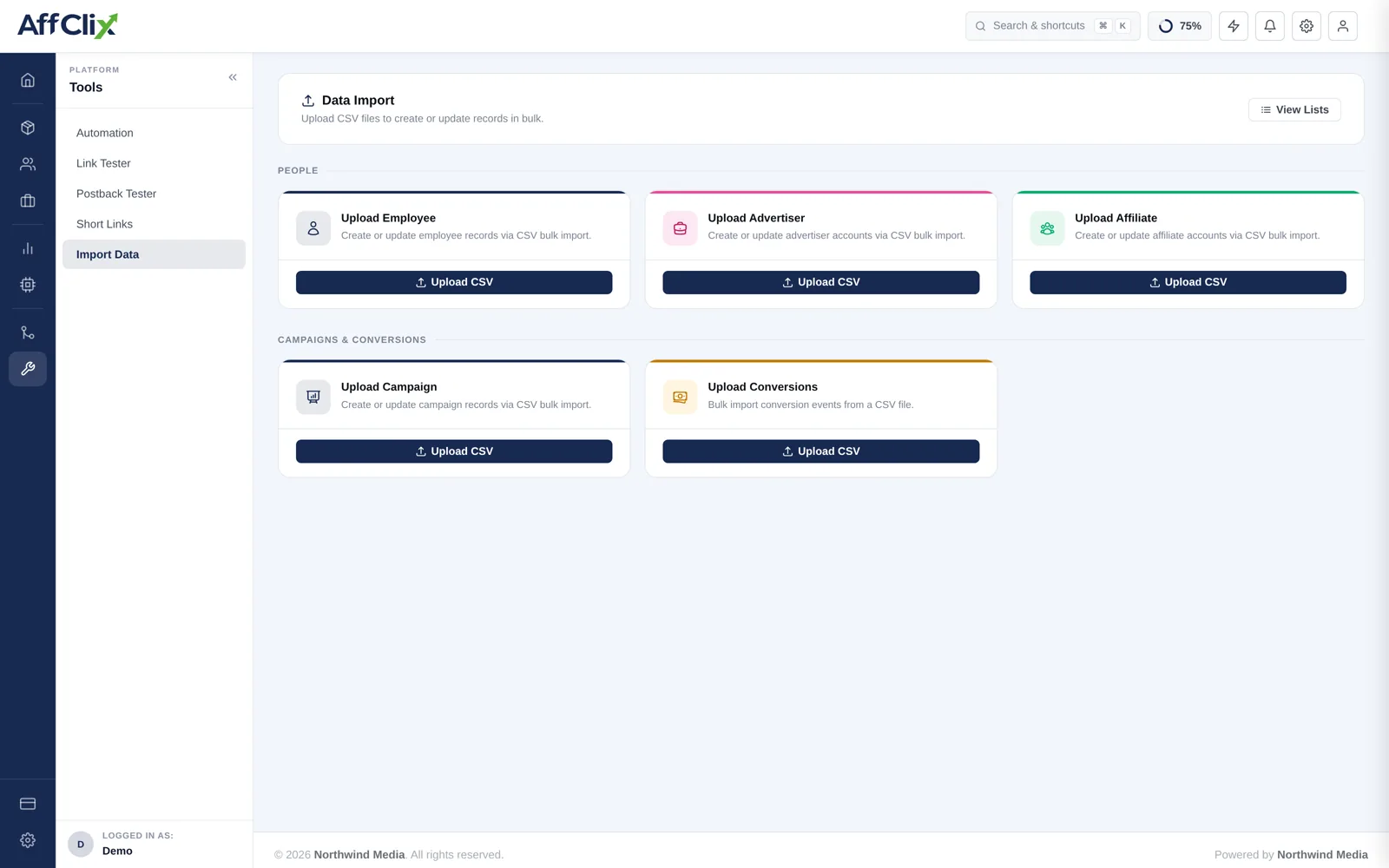
| Type | Use it for | Guide |
|---|---|---|
| Employee | Onboarding your own team in one go. | Import Team Members |
| Advertiser | Migrating a client list. | Import Advertisers |
| Affiliate | Migrating a publisher roster. | Import Affiliates |
| Campaign | Recreating an offer catalogue. | Import Campaigns |
| Conversions | Backfilling conversions that were never postbacked. | Import Conversions |
How an Import Works
Download the template for that record type
The template defines the exact columns and their order. Do not build a file from scratch.
Fill it in without changing the header row
Column names are how the importer maps your data. Renaming or reordering them breaks the mapping.
Upload the CSV
Use the matching upload card — an affiliate file uploaded to the advertiser importer will fail.
Review the result under View Lists
Every import produces a record of what succeeded and what did not, with per-row errors.
A malformed column that produces one bad record is a quick fix. The same mistake across a full roster means auditing and correcting every row afterwards. Always trial a small slice of the real file first.
Preparing a File
Excel and Sheets will happily reformat a phone number into scientific notation or strip a leading zero from a country code. Format those columns as text before you paste data in.
Checking the Result
View Lists shows every import you have run, when, and its outcome. A partially successful import is normal — valid rows are created and invalid rows are reported with the reason.
Fix the rejected rows in a new file containing only those rows, and re-upload. Do not re-upload the whole file, or you will create duplicates of everything that already succeeded.
Migrating a Whole Network
Order matters, because later records reference earlier ones:
Team members first
Advertiser and affiliate records reference an account manager, who must already exist.
Advertisers next
Campaigns require an advertiser.
Affiliates
Independent of campaigns, so they can go before or after — but before you grant campaign access.
Campaigns last
They reference advertisers, and their access lists reference affiliates.
Conversions only if you need history
Backfilled conversions affect balances. Decide first whether they should be payable.
Records get fresh AffClix IDs, not the ones from your old platform. Every tracking link has to be reissued, and any historical report you keep from the old system will not join to the new IDs. Store the old identifier in the External Campaign ID field where one exists.